Written by Robin
Edited on
1 August 2025
·
15:21
How do you update the Wacom driver?
Is your Wacom drawing tablet or pen no longer working the way it should. The Wacom driver might not be up-to-date, or it's set up incorrectly, or the operating system was updated. In this article, you'll read how to update the driver, so you can quickly get back to working with your Wacom drawing tablet.
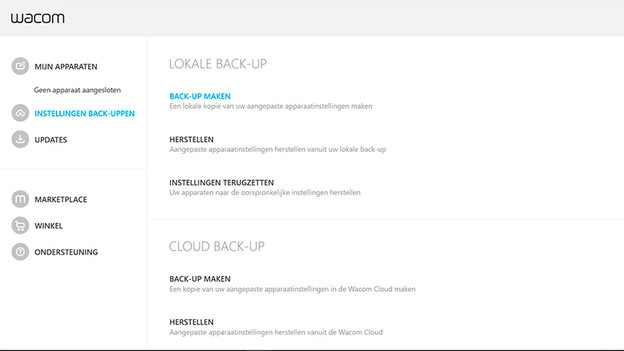
Step 1. Back up your Wacom settings
- Go to 'Start' and type 'Wacom'
- Open the Wacom Desktop Center
- Go to 'Backup Settings'
- Click 'Making a backup'
- Pull the Wacom drawing tablet's USB cable from the computer

Step 2. Download the most recent Wacom driver
- Go to the Wacom support site
- Click 'Drivers'
- Go to 'Latest Drivers'
- Press the 'Download' button next to the Windows driver

Step 3. Uninstall the current Wacom driver
- Press the Windows key and the X key on your keyboard at the same time. A menu will appear.
- Go to 'Programs and features'
- Find and select Wacom in the list. The older Wacom models may be listed under a different name, such as; Bamboo, Pen Tablet, Tablet, Wacom
- Click the right mouse button and click 'delete'
- Restart the computer

Step 4. Setting up the new driver
- Go to the folder containing the Wacom driver. This is commonly the 'Downloads' folder in Windows
- Double-click the Wacom driver. The driver's installation process will start automatically.
- Not working? Click the driver with the right mouse button. Select 'Run as administrator'
- The installation is completed. Restart the PC
- Connect the Wacom drawing tablet to the computer with the USB cable

Step 5. Restore backup
- Go to 'Start*' and type 'Wacom'
- Open the Wacom Desktop Center
- Go to 'Backup settings'
- Click 'Restore'
- Open the .wacomprefs file
- Your preferences have now been restored.
You've followed all the steps to solve the problem. Now you can get back to work with your drawing tablet.