Written by Robyn
Edited on
21 March 2023
·
08:33
This is how you zoom in on your Apple Watch
On the Apple Watch, you can read your messages and the time at any time moment. But if your eyes are strained at the end of the day, you might not be able to see the small letters sharply. Fortunately, you can easily zoom in on your Apple Watch. In this article, we'll tell you how to turn on Zoom on your Apple Watch.
Turn on Zoom
To turn on Zoom, follow 4 steps:
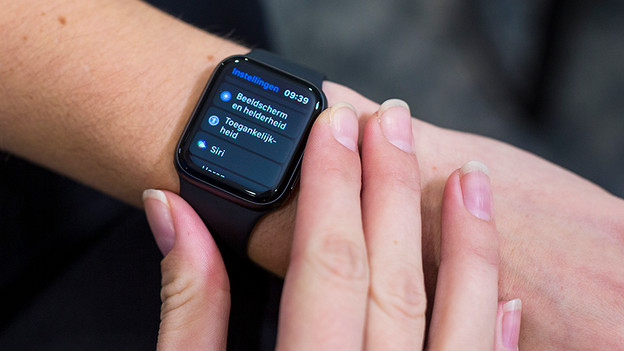
- On your Apple Watch or in the Apple Watch app on your iPhone, go to 'Settings'.
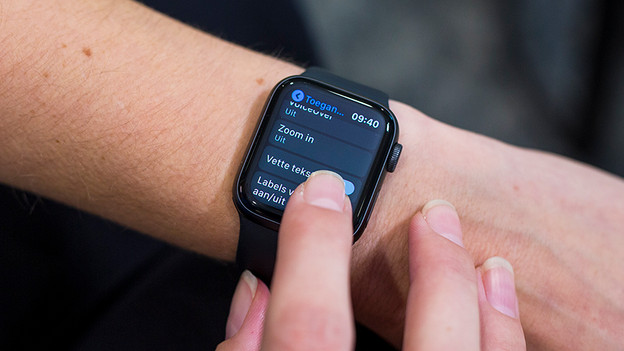
- Scroll down until you reach Accessibility and click on it.
- In the overview, click 'Zoom'.
- Slide the switch next to 'Zoom'. The switch will turn green and you'll see a gray image with the text Zoom enabled on your Apple Watch. You can now zoom in on your Apple Watch.
Open 'Settings' and go to 'Accessibility'
Scroll down and click 'Zoom'
Turn on 'Zoom' by sliding the switch to the right
A screen on my Apple Watch now indicates that Zoom is turned on.



Zoom in and out
Zooming in and out on the Apple Watch is simple. Tap on the screen of the Apple Watch with 2 fingers at the same time and the text size increases or decreases. To navigate the screen, swipe across it with 2 fingers. On the screen, you'll see a space that shows where you are on the screen. You can also navigate by rotating the Digital Crown. Is the text still too small? Go to the Apple Watch app on your iPhone. Navigate to Accessibility, then to Zoom, and increase the zoom limit.
I tap on the screen with 2 fingers and the text size increases right away.
With the Digital Crown, I can navigate on the zoomed in screen.
I can set the zoom limit via the Apple Watch app on my iPhone.


Turn off Zoom
When you no longer need the zoom function, you can easily turn it off in 4 steps.
- Go back to 'Settings' on your Apple Watch or in the Apple Watch app on your iPhone.
- In the menu, click Accessibility again.
- Click Zoom in the overview.
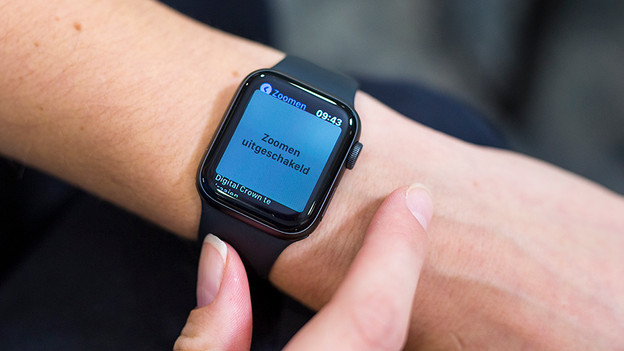
- Turn of the zoom function here. You'll see another gray screen on the display of your Apple Watch. This time, it says Zoom disabled.
In the *Settings* app, I scroll back down to *Accessibility*.
I navigate to *Zoom* and turn off the green switch.
On the Apple Watch, you'll see a screen with the text *Zoom disabled*.
The switch turns gray again. Zoom on the Apple Watch is now disabled.