Welcome to your environment! You can order everything from your assortment with your personal budget here.

You can always return to the normal Coolblue website by clicking here.

Your outstanding budget (incl. VAT) is always visible here, so you know exactly how much you can spend.

Coolblue home

Help with your product

Samsung Galaxy A54 128GB Purple 5G + BlueBuilt Screen Protector
0 reviews

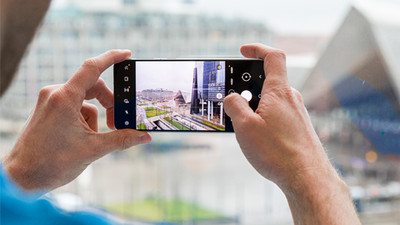
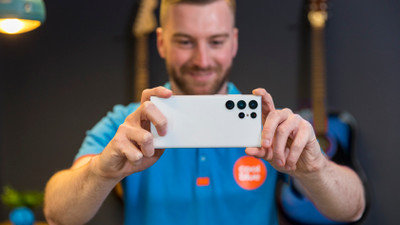
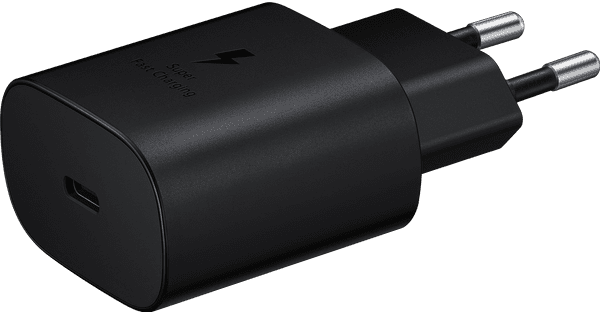
The Samsung Galaxy A54 128GB Purple 5G + BlueBuilt Screen Protector Glass, you can protect your screen from scratches and bumps. The A54 has 3 cameras on the back: a standard lens, wide-angle lens, and macro lens. Thanks to the wide-angle lens, you can take a photo of a large building from up close. Take a photo of a small object with the macro lens, like a flower or insect. You can store your photos, apps, and other files on the 128GB storage. The large 5000mAh battery easily lasts an entire day at average use. You can charge the battery with a separately available 25W fast charger. Comfortably watch your favorite movies and series on the 6.4-inch Full HD screen. Due to its size, it's hard to control the device with 1 hand.

Read all tips here

Which product do you want to see articles about?

How do you apply a glass screen protector with a fingerprint scanner under the screen?

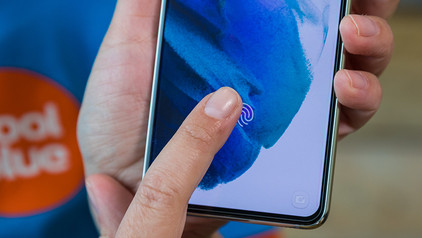
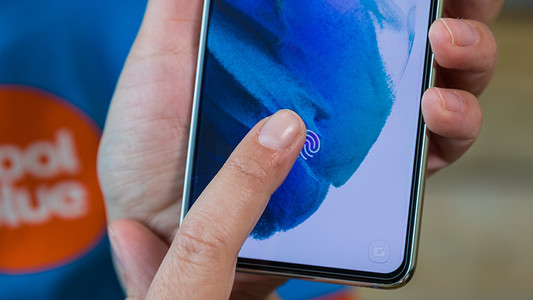
Sometimes, your fingerprint scanner doesn't work properly when you stick a glass screen protector onto your screen. As a result, you suddenly can't unlock your smartphone with your fingerprint anymore. You can fix this by changing your phone settings. We'll explain what you have to do to make your in-screen fingerprint scanner work again in 3 steps here.

How do you apply a glass screen protector with a fingerprint scanner under the screen?

Sometimes, your fingerprint scanner doesn't work properly when you stick a glass screen protector onto your screen. As a result, you suddenly can't unlock your smartphone with your fingerprint anymore. You can fix this by changing your phone settings. We'll explain what you have to do to make your in-screen fingerprint scanner work again in 3 steps here.
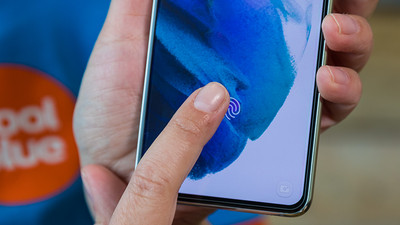
How do you apply a glass screen protector with a fingerprint scanner under the screen?

Sometimes, your fingerprint scanner doesn't work properly when you stick a glass screen protector onto your screen. As a result, you suddenly can't unlock your smartphone with your fingerprint anymore. You can fix this by changing your phone settings. We'll explain what you have to do to make your in-screen fingerprint scanner work again in 3 steps here.
4 tips to get more out of your Samsung smartphone

You have a new Samsung smartphone and you know how to use it pretty well. There's still a chance that you don't know all useful features yet. Do you know how to easily control your device with 1 hand? In this article, we'll give 7 tips, so you can get the most out of your Samsung smartphone.

Which Samsung smartphone do you have?

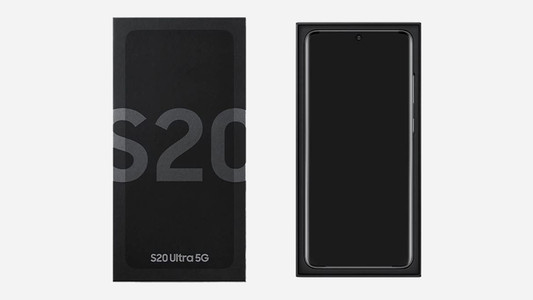
When you buy a case, screen protector, or charger for your Samsung smartphone, you want to be sure the accessories are suitable for your device. Don't know for sure which Samsung smartphone you have? You can find the name of your device on the original packaging or on the settings menu. On this page, we explain how this works.

3 tips for when the battery of your Samsung smartphone doesn't work.

Won't the battery of your Samsung smartphone charge or does it charge very slowly? In this article, we've listed various tips to solve this problem.

Sell your Samsung phone for a discount

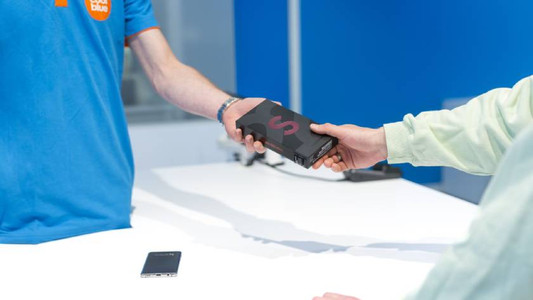
With Samsung Upgrade, you can trade in your old device at a Coolblue store for a discount on a new Samsung Galaxy smartphone. That's good for your wallet. It's also a sustainable choice, because we give your old smartphone a second life.

3 tips for when the screen of your Samsung smartphone doesn't respond properly

If the screen of your Samsung smartphone doesn't respond anymore, it doesn't necessarily mean that it's broken. Sometimes it helps to reset your device. In other cases, the phone case or screen protector is the problem. In this article, we'll give you some tips, so you can use your screen the way you're used to again.

How do you apply a glass screen protector with a fingerprint scanner under the screen?

Sometimes, your fingerprint scanner doesn't work properly when you stick a glass screen protector onto your screen. As a result, you suddenly can't unlock your smartphone with your fingerprint anymore. You can fix this by changing your phone settings. We'll explain what you have to do to make your in-screen fingerprint scanner work again in 3 steps here.
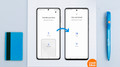

How do you apply a glass screen protector with a fingerprint scanner under the screen?

Sometimes, your fingerprint scanner doesn't work properly when you stick a glass screen protector onto your screen. As a result, you suddenly can't unlock your smartphone with your fingerprint anymore. You can fix this by changing your phone settings. We'll explain what you have to do to make your in-screen fingerprint scanner work again in 3 steps here.
How do you apply a glass screen protector with a fingerprint scanner under the screen?

Sometimes, your fingerprint scanner doesn't work properly when you stick a glass screen protector onto your screen. As a result, you suddenly can't unlock your smartphone with your fingerprint anymore. You can fix this by changing your phone settings. We'll explain what you have to do to make your in-screen fingerprint scanner work again in 3 steps here.

How do you remove your old screen protector from your screen?

Before you apply a new screen protector, you have to remove the old screen protector from your device first. Often, it's not a good idea to just pull it off. The glass of the screen protector can break and give shards, for example. That's why we explain 3 ways to safely remove your screen protector.

4 tips to get more out of your Samsung smartphone

You have a new Samsung smartphone and you know how to use it pretty well. There's still a chance that you don't know all useful features yet. Do you know how to easily control your device with 1 hand? In this article, we'll give 7 tips, so you can get the most out of your Samsung smartphone.

Which Samsung smartphone do you have?

When you buy a case, screen protector, or charger for your Samsung smartphone, you want to be sure the accessories are suitable for your device. Don't know for sure which Samsung smartphone you have? You can find the name of your device on the original packaging or on the settings menu. On this page, we explain how this works.

3 tips for when the battery of your Samsung smartphone doesn't work.

Won't the battery of your Samsung smartphone charge or does it charge very slowly? In this article, we've listed various tips to solve this problem.

Sell your Samsung phone for a discount

With Samsung Upgrade, you can trade in your old device at a Coolblue store for a discount on a new Samsung Galaxy smartphone. That's good for your wallet. It's also a sustainable choice, because we give your old smartphone a second life.

3 tips for when the screen of your Samsung smartphone doesn't respond properly

If the screen of your Samsung smartphone doesn't respond anymore, it doesn't necessarily mean that it's broken. Sometimes it helps to reset your device. In other cases, the phone case or screen protector is the problem. In this article, we'll give you some tips, so you can use your screen the way you're used to again.

How can I find the IMEI number of my phone?

Every telephone has a unique IMEI number. This allows you to find useful information from a telephone, such as how old the device is or who the owner is. This can come in handy if your phone breaks so you can see if it's under warranty. Also useful if you want to report your stolen phone. I explain how to find the IMEI number here.

7 tips for charging your smartphone

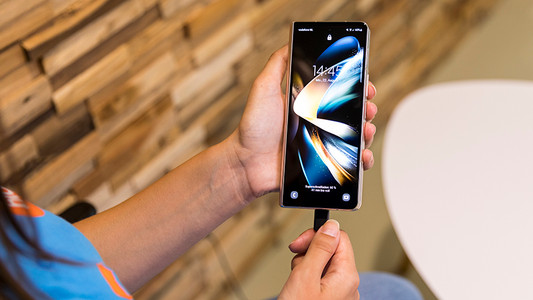
You probably charge your smartphone every day. When you charge it the right way, your battery wears less and your device lasts longer. We'll explain why it's better not to charge your smartphone up to 100% and why fast charging is convenient here. That way, you'll know exactly how to properly charge your smartphone, tablet, or other device.

How do I update my Android version?

Every new version of Android provides improvements. In this article, I'll explain how to provide your smartphone with the latest version of Android. If you go through the steps below, you can be sure that your device has the latest Android operating system.

Subjects
Didn't find your answer?

Find an answer to your question quickly and easily via our customer service.

Coolblue specialist
Personal chat Digitalk.
You're now chatting with Coolblue customer service
This chat is closed
foo
Oeps File size is larger than 5MB. Upload a smaller file.