Written by Donato
Edited on
24 June 2025
·
14:09
How do you add a streaming service to your Sonos system?
You've just installed your Sonos speaker. Now it's time to add your favorite music streaming service. In this article, we'll explain how to add a streaming service like Spotify or Deezer to your Sonos system.
What do you need?
- A working Sonos system.
- How do I install my Sonos speaker?
- The Sonos app installed on your smartphone or tablet.
- The app of your streaming service installed on your smartphone or tablet. The Spotify app, for example.
Note: with most streaming services, you can only stream to Sonos speakers with a paid or premium subscription.

Step 1: open the Sonos app
Open the Sonos app on your smartphone or tablet. You'll now see the standard screen you use to play music and control your Sonos speakers.
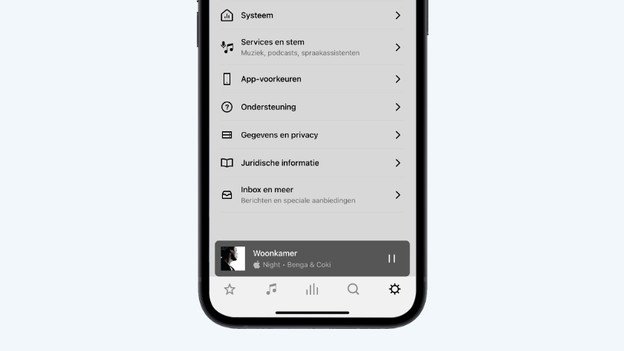
Step 2: open the settings
If you follow these steps on a tablet, the menu is already opened in the left column and you can skip this step. If you're using your smartphone, tap the gearwheel in the bottom right corner to open the settings. After that, click 'Services & Voice'.

Step 3: tap 'Add Music Services'
Tap 'Add a Service' in the 'Music and Content' tab.

Step 4: choose your streaming service
Choose your streaming service from the list. Can't find your service? Tap the magnifying glass in the top right corner to search for your music streaming service.

Step 5: add a streaming service
The app now gives you information about your chosen service. Click 'Add to Sonos'.

Step 6: enter your username and password
The app now asks you to enter your username and password which you use to log in to your streaming service. Enter these and give the service a name.

Step 7: the services has been added
You can now see the added streaming service in the 'Services & Voice' menu. Repeat the steps to add more streaming services.
You're done
Your music streaming service has been added. The app returns to the home screen. You'll see the service you've just added in the main menu. Use the magnifying glass in the top right corner to look for a number, artist, or playlist.
Article by Donato
Audio Expert.