
Written by Dounia
Edited on
1 August 2025
·
15:21
Get started with Galaxy AI on your Samsung tablet
Galaxy AI is Samsung's artificial intelligence. It allows you to easily edit photos or quickly summarize a text. In this article, we'll explain how you can use Galaxy AI on your Samsung tablet.

Get started with Galaxy AI on your tablet
In this article, we explain how to use the following Galaxy AI functions:
- Summarize notes or a written text
- Translate your notes
- Edit your photos and delete objects
- Summarize news articles or text from a website
- Circle to Search
Tip 1: summarize your notes
If you don't have time to summarize a long text, Galaxy AI can do it for you. AI can easily summarize your notes, so you only see the most important information.
- Go to the 'Notes' app.
- Tap on the pencil to create a new note.
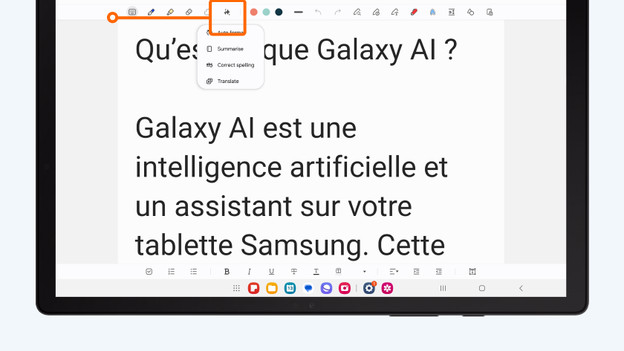
- Add the text you want to summarize. Then tap the 3 stars.
- Tap 'Summarize' and then 'Generate summary'.
- The summarized text will appear on the right side of the screen.


Tip 2: translate a long text or notes
Are you reading an article or a long text in a different language? It's useful to translate the text, so you can understand it better. With Galaxy AI, you can quickly translate various texts on your tablet.
- Go to the 'Notes' app.
- Tap on the pencil to create a new note.
- Add the text you want to translate. Then tap the 3 stars.
- Tap 'Translate' and then 'Generate translation'.
- The translated text will appear on the right side of the screen.


Tip 3: edit your photos and remove objects
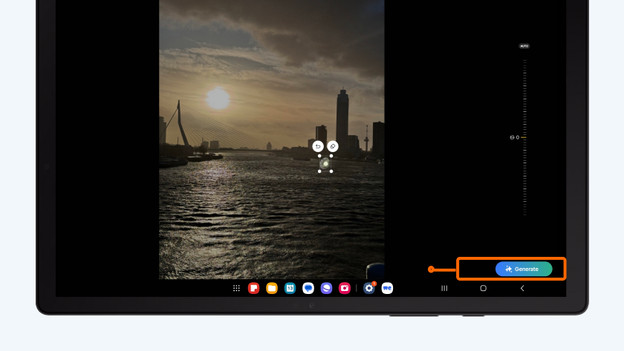
You can quickly and easily edit various photos with the smart assistant. Did you take a photo and want to remove an object or glare? Follow these steps:
- Go to the 'Gallery' app.
- Choose the photo you want to edit and tap the pencil.
- Tap the 3 stars.
- Tap the object you want to remove and tap the eraser. Tap the 3 stars again.
- The object is now gone and you can save the photo.



Tip 4: translate or summarize various articles with Browsing assist
Translate or summarize various articles with Browsing assist. That's useful for news articles or blogs. You save a lot of time, because you don't have to read the entire article.
- Go to the 'Internet' app.
- Look for the article you want to translate or summarize. Then tap the 3 stars at the top of your screen.
- Rap 'Summarize' or 'Translate'
- You can now find the translated or summarized article on the right side of your screen.


Tip 5: circle something and look it up via Google
With Circle to Search, you can quickly find various things. Circle a clothing item on Instagram while you're scrolling and Galaxy AI can tell you exactly where to buy the product.
- Press and hold the square home button.
- A kind of colorful blur appears on your screen. Circle the subject you want to search.
- The product or obkect you searched for will appear at the bottom of the screen.


