
Written by Megan
Edited on
26 October 2022
·
09:42
How do you install Samsung Kids Mode?
If you have a Samsung tablet, your child can safely use the device thanks to the Samsung Kids Mode. This mode allows you to set time limits and choose which apps are accessible. In this article, we'll explain how to set up this mode so you can turn your Samsung tablet into a children's tablet.
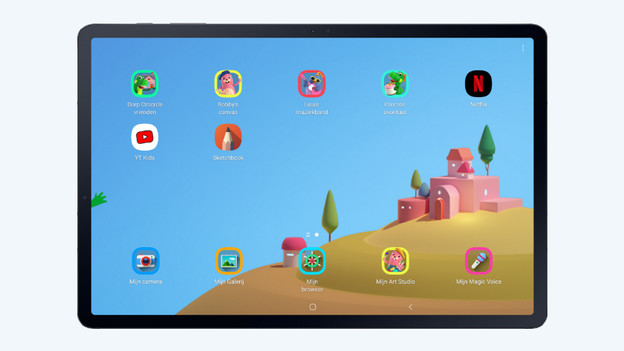
Set up Samsung Kids Mode in 3 steps
Follow the steps below and set up Samsung Kids Mode:
- Add Kids Mode to your apps
- Set up Samsung Kids
- Set up parental controls
Step 1: add Kids Mode to the available apps
Don't see the 'Kids' icon in the Quick Panel?
- Go to the second menu of the Quick Panel.
- Tap the plus icon. You'll see 'Available icons'.
- Drag the 'Kids' icon down and add it to Quick Panel. You can choose where you place the icon yourself.
On some tablets, the Samsung Kids Mode has already been installed. If that's the case, you can find the app among the apps in the menu.
- Swipe down on the home screen of your Samsung tablet.
- Tap 'Samsung Kids' in the Quick Panel.
Swipe to the second menu and press the plus icon.
Drag the 'Kids' icon down and add it.
Click 'Kids' in the Quick Panel.


Step 2: install Samsung Kids
- Tap 'Kids' in the Quick Panel. Samsung Kids will now open.
- Tap 'Start' in the bottom right corner. Do you want the icon to appear in the menu of your device among your other apps? Make sure to check the box next to 'Add Samsung Kids to app screen'.
- Tap 'Next'. The app is now being installed.
Click 'Sart'.
Make sure the box is checked if you want the app in your menu.
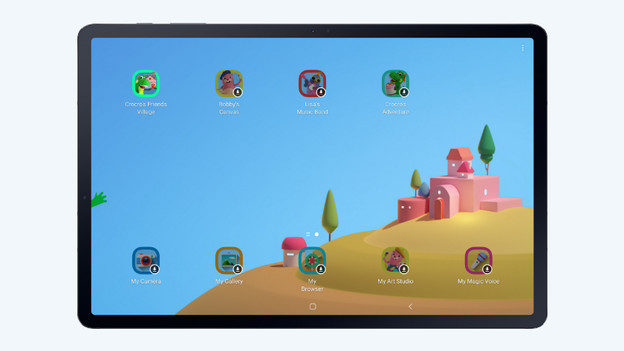
The app is being installed. Tap an icon to download the content.


Step 3: set parental controls
- Open the Samsung Kids app. Then, tap the 3 dots in the top right corner.
- Tap 'Parental controls'. You'll be asked to enter your PIN code. This is the same code you use to unlock the device.
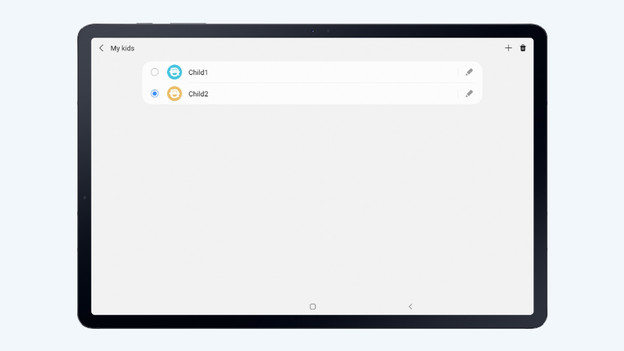
- Tap 'Set up profile' at the top. If you have multiple children, set up multiple profiles. This way, you can set time limits and app access for each child.
Without the code, your child can't close the app. This allows you to stay in control of what your children do on the tablet when you're not looking. As a final tip, we recommend making sure that your tablet can take a beating with a children's cover.
Open the app. Tap the 3 dots in the top right corner.
Tap 'Parental controls'.
Enter the information of your child.
Create separate profiles for each child.
Open the Kids app and your child's profile and let them do their thing.



Article by Megan
Tablet Expert.

